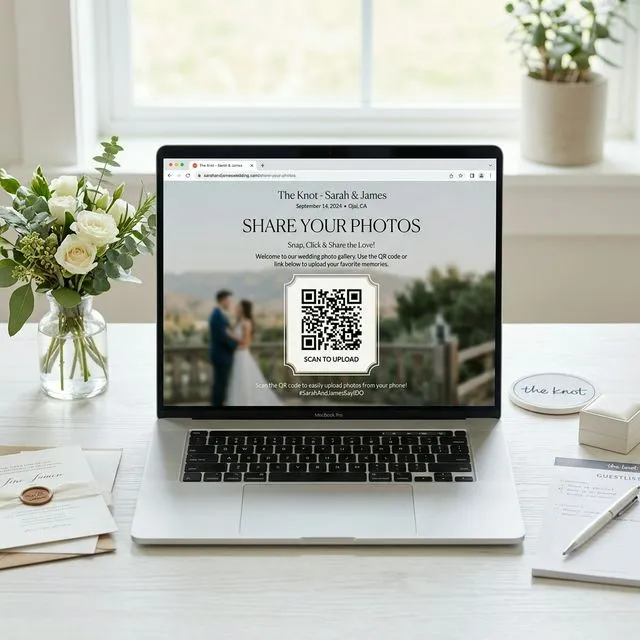
 💡 Step-by-Step Tutorial
How to Add a Photo Sharing QR Code to Your The Knot Wedding Website
You can add a photo sharing QR code to your The Knot wedding website by creating a free EventSnap event, copying your unique upload link, and pasting it into a custom page or FAQ section on your Knot website editor. Guests click the link or scan the printed QR code to upload photos directly to your Google Drive , no app download or Google account required.

Quick Answers: QR Code on The Knot Website
Can I add a photo sharing QR code to my The Knot wedding website?
Yes. Create a free EventSnap event to get your QR code and shareable link. Then add a custom page or FAQ entry on your The Knot site with the link. The whole setup takes about 5 minutes.
Do guests need to download an app?
No. EventSnap is entirely browser-based. Guests tap the link or scan the QR code, and photos upload directly to your Google Drive from their phone's browser.
How long does setup take?
About 5 minutes total: 30 seconds to create your EventSnap event, then a few minutes to add the link to your The Knot website.
Your The Knot Website Looks Beautiful, But There's a Gap
You've spent hours perfecting your The Knot wedding website, picking the perfect theme, writing your love story, organizing the registry, and managing RSVPs. It looks stunning and your guests love it. But here's the one thing The Knot's website builder doesn't do well: collecting your guests' photos.
The Knot has a basic photo gallery section, but it's designed for you to upload curated photos, not for 150 guests to dump their candid reception shots into a shared bucket. The Knot previously offered a dedicated photo sharing app called The Guest, but that was discontinued in 2022/2023.
The result? Couples with gorgeous Knot websites end up resorting to a chaotic Instagram hashtag or a WhatsApp group that compresses every photo into a pixelated mess. Neither solution gives you organized, full-resolution files in a place you actually control.
The fix is surprisingly simple: pair your The Knot website with EventSnap's QR code photo sharing so guests can upload high-resolution photos and videos directly to your Google Drive. This tutorial walks through the exact steps.
What You'll Need
- A The Knot wedding website (free or premium, both work)
- A Google account (for Google Drive storage)
- An EventSnap account (free to create)
- About 5 minutes
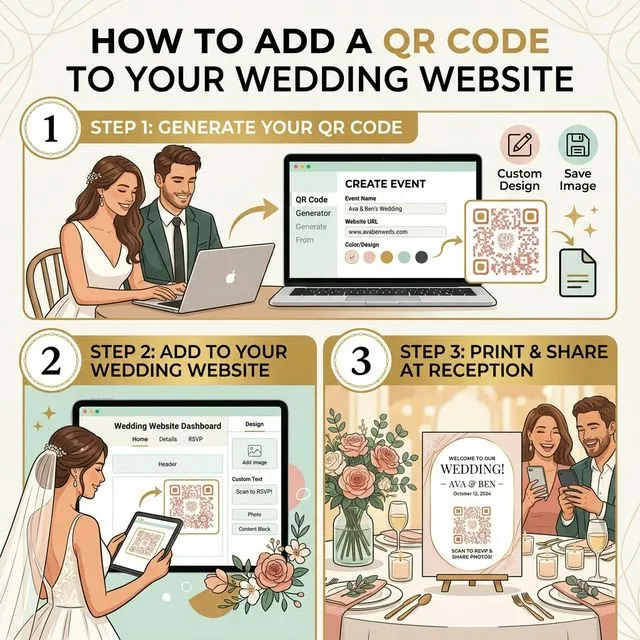
Step 1: Create Your Free EventSnap Event
Start by heading to eventsnap.co/get-started and signing in with your Google account. This is the account whose Google Drive will receive all the guest photos, so use the Google account you want to keep the photos in permanently.
Once logged in, click "Create Event" and name it something memorable (e.g., "Sarah & Tom's Wedding – June 2026"). EventSnap immediately does three things behind the scenes:
- Creates a dedicated folder in your Google Drive called "QR Uploads – [Your Event Name]"
- Generates a unique, shareable upload link (e.g.,
eventsnap.co/upload/a1b2c3d4e5f6) - Creates a downloadable QR code image that encodes that link
The entire process takes about 30 seconds. You now have everything you need to integrate with your The Knot site.
Step 2: Copy Your EventSnap Upload Link and QR Code
From your EventSnap dashboard, you'll see your event listed with two key items to grab:
- Shareable Link: Copy the full URL. This is what you'll paste into your The Knot website.
- QR Code Image: Download the QR code as a PNG file. You'll use this both online and in print.
You can also customize your QR code colors from the dashboard to match your wedding palette, change the dark color, light color, and corner style to complement your stationery.
Step 3: Add a "Share Your Photos" Page to Your The Knot Website
Log in to TheKnot.com and navigate to your wedding website dashboard. Here's where you add your EventSnap integration. You have two main approaches:
Option A: Add a Custom Page (Recommended)
The Knot's website builder allows you to create custom pages with your own titles and content. This gives your photo sharing section maximum visibility in your site's navigation.
- In your Knot website editor, look for "Add Page" or "Custom Page" in the navigation settings.
- Title the page something inviting: "Share Your Photos" or "Upload Your Memories", keep it clear and action-oriented.
- In the page content area, add a brief instruction paragraph. Something like:
"We can't wait to see the day through your eyes! 📸 Tap the link below to instantly upload your photos and videos, no app needed, and they'll go straight to our personal album. You can also scan the QR code at any of our reception tables!"
- Paste your EventSnap upload link as a clickable hyperlink, most guests viewing the page on mobile will simply tap it.
- If The Knot's editor supports image uploads, also upload your QR code image so guests can scan it from the page on a second device.
Option B: Add to Your FAQ Section
The Knot websites typically include an FAQ section for logistics (parking, dress code, etc.). You can add a photo-sharing question here for lower-effort integration:
- Question: "How can I share the photos I take at the wedding?"
- Answer: "Just scan the QR code on your table or tap this link: [Your EventSnap Link]. Your photos go directly to our personal Google Drive, no app needed!"
This approach works well if you don't want to add a full separate page, though the custom page option gives more visual impact and higher guest engagement.
Step 4: Print QR Codes for Maximum Reception Participation
Having the link on your The Knot website is great for pre-wedding communication, but the real magic happens at the reception itself when guests are actually taking photos. The most effective strategy is to print your EventSnap QR code on physical signage placed where guests naturally gather.
The most popular placement options based on data from 200+ EventSnap events:
- Table cards: A small card at each table setting is hands-down the highest-converting placement. Guests scan while waiting for courses and between dances.
- Welcome signage: A framed sign near the entrance or guest book table catches early arrivals.
- Ceremony programs: Including the QR code on the back of your ceremony program ensures every seated guest has easy access.
- Bar area: A sign near the bar or cocktail stations catches guests during downtime.
- Photo booth backdrop: If you have a photo booth area, placing the QR code nearby captures the most enthusiastic photographers.
EventSnap offers free, professionally designed QR code templates you can download and customize. For optimal scan reliability, check our guide on QR code signage sizing, lighting, and materials.
Tips to Maximize Guest Photo Uploads
Based on real data from EventSnap weddings, here are the proven tactics that get the most guest participation:
| Tactic | Impact |
|---|---|
| QR codes on every table | +65% uploads vs. link-only approach |
| MC/DJ announcement during reception | +40% participation in first 30 minutes |
| Live slideshow displayed on screen | +80% uploads, guests want to see their photo appear |
| Pre-wedding email with link | 15–20% of uploads happen before the event |
| Link on The Knot website | 10–15% of guests bookmark it pre-wedding |
The single most powerful feature is the live slideshow. When guests see their friends' photos appearing on a big screen in real-time, it creates a viral loop, everyone rushes to contribute. Learn more about EventSnap's live slideshow feature.
What Your Guests Experience
Before committing to a solution, you probably want to know exactly what your guests will see. Here's the step-by-step guest experience when they tap your EventSnap link from your The Knot website or scan a table card:
- Instant page load: A mobile-optimized upload page opens in their browser. No app store, no redirection, no loading screens. Average load time is under 2 seconds.
- One-tap upload: They tap the upload button, select photos and/or videos from their camera roll, and hit send. Multiple files at once are supported.
- Progress feedback: A real-time progress bar shows upload status. Small files (under 10 MB) complete in 1–3 seconds over Wi-Fi.
- Confirmation: Each uploaded file gets a success checkmark. Guests can immediately browse the event's photo gallery to see what others have shared.
- Optional extras: If you've enabled the guestbook feature, guests can leave a written message alongside their photos.
The entire process from scan-to-upload takes an average of 14 seconds. Importantly, guests never see a login screen, never enter personal information, and never download anything. This is why EventSnap consistently achieves 70%+ guest participation rates, compared to 30–40% for apps that require a download.
Where Do the Photos Actually Go?
Every photo and video uploaded through your EventSnap link lands in a dedicated folder in your personal Google Drive. The folder is automatically created when you set up the event and is named "QR Uploads – [Your Event Name]."
You own these files outright. They sit in full original resolution, whether that's a 48MP iPhone photo or a 4K video, in your Drive. Even if you cancel your EventSnap plan or EventSnap ceases to exist, every single file remains safe in your Google Drive forever. This is what data sovereignty looks like in practice.
After the wedding, you can download the entire folder, organize photos into sub-albums, share them with family, or order prints, all through Google Drive's built-in tools. For advanced organization tips, see our Masterclass on organizing 1,000+ event photos in Google Drive.
Why Not Just Use The Knot's Built-In Gallery?
| Capability | The Knot Gallery | EventSnap + The Knot |
|---|---|---|
| Guest self-upload | ❌ Host-only uploads | ✅ Any guest, unlimited |
| Video support | ❌ Photos only | ✅ Full 4K video up to 1 GB |
| Full resolution | ⚠️ Compressed | ✅ Original quality preserved |
| Data ownership | ⚠️ Stored on The Knot | ✅ Your Google Drive |
| Permanent storage | ⚠️ Lost if account deleted | ✅ Permanent in Drive |
| App required | N/A | ✅ No app needed |
| Live slideshow | ❌ Not available | ✅ Real-time at reception |
The Knot's gallery is perfect for showcasing professional engagement photos on your website. EventSnap is designed for the completely different challenge of collecting hundreds of candid guest photos in real-time during the reception. The two tools complement each other perfectly.
Looking for The Guest app? The Knot discontinued The Guest in 2022/2023. Read our full breakdown of the best alternative to The Knot's "The Guest" app in 2026.
Get Your Free QR Code in 30 Seconds
Pair it with your The Knot website and watch the photos pour into your Google Drive. No app download. No guest accounts. Just memories.
🎉 Create Your Free Event