 🌟 Ultimate Guide
Google Drive Wedding Photo Sharing in 2026: The Easiest QR Code Method

Quick Answers: Google Drive Wedding Photo Sharing
Can wedding guests upload photos directly to Google Drive?
Yes. With EventSnap, guests scan a QR code and upload photos through their browser. Everything goes straight to a private folder in your personal Google Drive at full resolution. No app download or Google account needed for guests.
What is the QR code method for wedding photo sharing?
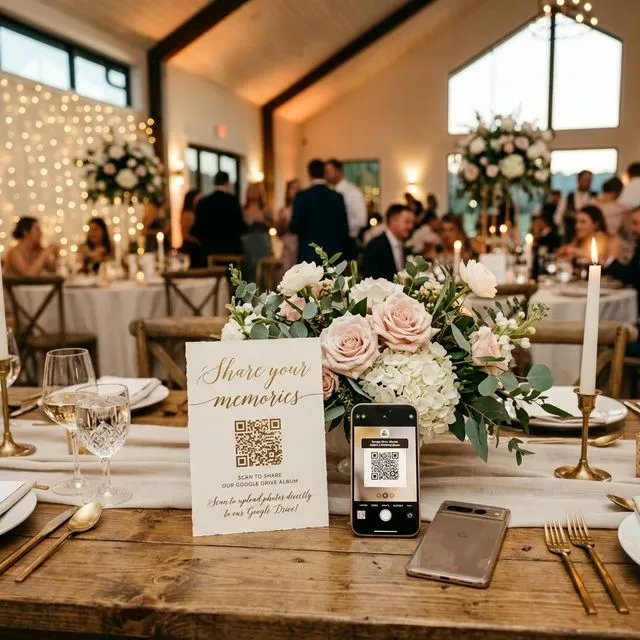
Print EventSnap QR codes and place them on reception tables. When guests scan with their phone camera, they are taken to an upload page. They select photos and videos, and everything goes directly to your Google Drive.
You’ve booked the venue, finalized the caterer, and found the perfect photographer. Now comes one of the most stressful logistical challenges of modern wedding planning: How do you collect the hundreds of candid photos and videos your guests will take on their phones?
For years, couples have looked to Google Drive as the obvious solution for wedding photo sharing. It’s familiar, it’s secure, and almost everyone has a Google account. The idea of generating a “Shared Folder” link, turning it into a QR code, and putting it on reception tables seems like the perfect, free DIY method to collect memories.
But there’s a massive catch.
If you've ever tried to share a raw Google Drive folder via a QR code at a live event, you already know the disaster that usually unfolds. Guests scan the code, their mobile browser opens, and suddenly they are hit with a mandatory Google login screen. Aunt Susan forgets her password. Your college roommate’s iCloud storage conflicts with their Gmail account. Half the guests abandon the upload process entirely, and you’re left with only a fraction of the photos you hoped to collect.
So, is Google Drive a bad choice for your wedding? Absolutely not. In fact, Google Drive is the best place for your memories to live permanently. The problem isn’t Google’s storage-it’s the way you’re asking guests to interact with it.
In this comprehensive 2026 guide, we’re going to show you the ultimate "Bridge Method" for Google Drive wedding photo sharing. You’ll learn how to use a QR code to let guests upload unlimited photos and 4K videos directly to your Google Drive-in full resolution-without ever forcing them to download an app or log in.
Understanding the Flaws of the "Native" Google Drive Method
To understand why the new method is so revolutionary, we first need to look at why the old, native DIY Google Drive method consistently fails at weddings.
When you create a folder in your Google Drive and set the permissions to "Anyone with the link can edit/organize," you might assume you’ve solved the privacy issue. You haven’t. While anyone can view the folder, Google still requires users to be authenticated securely with a Google account to upload files.
The Mobile Browser "Login Wall"
When your guest scans a QR code using their iPhone’s camera, the link opens in Safari. Even if that guest has the Gmail app installed and is logged in there, Safari maintains a completely separate authentication session. To Safari, this user is not logged in to Google.
The guest is then presented with a Google Sign-in screen. At a wedding reception, when the music is playing and drinks are flowing, no one wants to type in a complicated password, trigger a Two-Factor Authentication push notification, or deal with a "suspicious login attempt" alert from a new location.
The Result: Industry data shows that a login requirement causes a staggering 60-70% drop-off rate in guest participation. You lose hundreds of candid moments because of a password prompt.
The Shared Storage Quota Crisis
Even if a guest successfully logs in, the DIY method falls into a second trap: storage quotas. When a guest uploads files directly into your shared Google Drive folder, those files consume their 15GB free Google storage, not just yours. If your guest's Google account is full (which is increasingly common), their upload will be completely blocked, and they’ll see a frustrating "Storage Full" error.
Deep Dive: Want the full technical breakdown on why native folders fail? Read our detailed spoke post: Why Google Drive Shared Folders Fail at Weddings.
The Modern Solution: The "Bring Your Own Storage" (BYOS) Architecture
The core philosophy for 2026 event photo sharing is simple: Keep Google Drive as your permanent backend storage, but replace the awful frontend guest experience.
This is where specialized bridge platforms like EventSnap come in. Platforms like EventSnap utilize a "Bring Your Own Storage" (BYOS) model. They act as a frictionless liaison between your offline guests and your online Google Drive.
How the Bridge Method Works:
- You Authenticate Once: Before the wedding, you log into EventSnap and securely link your Google account. EventSnap automatically creates a dedicated "EventSnap Uploads" folder inside your personal Google Drive.
- The Setup is Invisible: EventSnap generates a custom, beautifully branded QR code.
- Guests Scan & Upload Frictionlessly: At the reception, a guest scans the QR code. They are taken directly to a sleek, mobile-optimized upload page. There is no app to download, and crucially, no login required. They simply tap "Upload," select their photos or 4K videos, and hit send.
- The Magic API Transfer: Behind the scenes, EventSnap’s servers take the incoming files and securely route them directly into your Google Drive folder via the Google API.
Why the BYOS Method is Superior to All Alternatives
1. Permanent Ownership (No Expiration Dates)
The most popular wedding photo sharing apps on the market today (like GuestPix or Kululu) operate on a rental model. They charge you $50 to $100 to host your photos on their servers. After 12 months (or sometimes as little as 3 months), your gallery expires. You have to frantically download hundreds of gigabytes of photos, or pay exorbitant fees to keep your gallery alive.
With the Google Drive bridge method, your photos are natively stored in your personal Google account. They live forever. You never have to worry about a startup going out of business or a subscription lapsing. Your memories belong to you.
Cost Comparison: Wondering how this compares financially to other apps? See our detailed breakdown in Hidden Costs: Google Drive vs. GuestPix vs. Kululu.
2. Zero Guest Friction
Because EventSnap handles the API handoff, the guest never sees a Google login screen. Whether they are on an iPhone, an Android, or an ancient flip phone with a rudimentary browser, the upload process is identical: Tap, Select, Upload. By removing the login wall, participation rates routinely jump from 30% to over 85%.
3. Full Resolution & No Guest Storage Penalties
When files route through EventSnap into your Drive, they are sent in their original, uncompressed format. That 48-megapixel iPhone 16 Pro Max RAW file? It lands in your Drive at exactly 48 megapixels. That 4K video of your first dance? Uncompressed and pristine. Even better, because the files are being written directly to your Drive via the API, the storage only counts against your quota-completely bypassing the guest's storage limit.
Pro Tip: Ensure you have enough Google Drive storage space before the wedding. A typical wedding generates 10GB to 30GB of guest media. Upgrading to Google One (100GB or 2TB) costs as little as $1.99/month and is a fantastic investment for your new life together. Read our guide on The Best Camera Settings & File Formats for Google Drive Wedding Uploads to understand how different formats affect storage.
Step-by-Step Guide: Setting Up Google Drive Wedding Sharing
Now that you understand why this is the definitive method, here is exactly how to execute it flawlessly for your wedding day.
Step 1: Connect Your Google Drive
Head to EventSnap and sign in using the Google account where you want all your wedding photos to live. (Couples often create a shared `smithwedding2026@gmail.com` account specifically for their wedding planning-this is the perfect place to host your Drive!). When prompted, grant EventSnap permission to create a folder. Note: EventSnap uses restricted API scopes, meaning it can only see and touch the specific folder it creates; your other Drive files are completely safe and invisible to the app.
Step 2: Create Your Event
Name your event (e.g., "Sarah & John's Wedding"). You can optionally customize the greeting message that guests will see when they scan the QR code, such as: "Welcome! We can't wait to see the wedding through your eyes. Please upload your photos and videos below!"
Step 3: Download & Print Your QR Code
Instantly download your custom QR code. EventSnap provides high-resolution SVG and PNG formats perfect for printing. In 2026, the best practice is to place these codes:
- On every reception table (as part of the centerpiece or menu card).
- Near the bar.
- Next to the guestbook.
- On a screen near the dance floor.
For extensive design tips, check out our Ultimate 2026 Guide to Creating the Perfect QR Code for Event Photos.
Step 4: Watch The Memories Roll In
On your wedding day, as guests scan and upload, the files will magically begin appearing in the dedicated folder in your Google Drive. You can monitor the progress in real-time on your EventSnap dashboard. The files are organized, timestamped, and safely stored in your own cloud infrastructure.
Advanced Tips for Maximizing Guest Uploads
Having the right tech is only half the battle. To ensure you collect thousands of photos, you must nail the execution at the venue.
- The "DJ Announcement": Ask your DJ or MC to make a brief announcement halfway through the reception. Have them say: "If you've been taking photos tonight, please scan the QR code on your table. Sarah and John want to wake up tomorrow and see all the incredible moments you captured!"
- Incentivize the Sharing: Make it a game. Tell guests that whoever uploads the best candid photo will win a gift card after the honeymoon. Let people know that these photos will be featured in a post-wedding collage.
- Provide Wi-Fi Access: Since guests will be uploading high-resolution 4K videos, ensure that your venue has strong Wi-Fi. Print the Wi-Fi network and password directly beneath the QR code on your wedding signage to remove all barriers.
- Send a Post-Wedding Email/Text: The morning after the wedding, send a massive group text or email to your guests with the direct EventSnap upload link (which functions exactly like the QR code). People love looking through their camera roll the morning after; catching them at this moment results in a huge spike of uploads. For highly specific instructions, see our spoke post: How to Let Guests Upload Photos to Your Google Drive via QR Code (Without Them Logging In).
Frequently Asked Questions About Google Drive Photo Sharing
Is Google Drive good for sharing wedding photos?
Yes, Google Drive is excellent for permanent, uncompressed storage of wedding photos. However, sharing native Drive folders with guests often fails due to complex login requirements. Using a 'bridge' service like EventSnap combined with Google Drive creates the perfect solution: zero friction for guests and permanent storage for you.
How do I let guests upload photos to Google Drive with a QR code?
Instead of linking your QR code directly to a Google Drive folder (which requires guests to log into a Google account), you should link it to a platform like EventSnap. EventSnap provides a frictionless upload page without logins and automatically syncs all uploaded photos in full resolution to your designated Google Drive folder.
Can guests upload out of storage errors on Google Drive?
If you use native Google shared folders, guest uploads may be blocked if their personal Google accounts are full. By using EventSnap as a bridge, the uploads count only against the host's Drive storage quota, completely bypassing the guest's storage limitations.
What is the best alternative to GuestPix or Kululu in 2026?
The best alternative to platforms that delete your photos after a year (like GuestPix or Kululu) is the 'Bring Your Own Storage' (BYOS) method using Google Drive and EventSnap. This costs a fraction of the price and guarantees that you own your photos forever, natively in your Google ecosystem, with no expiry date.
Build Your Ultimate Wedding Photo Gallery
Create your frictionless QR code today. Send unlimited memories straight to your Google Drive-forever. Start with our free tier.
✨ Connect Your Google Drive Now