 💡 Expert Analysis
Why Google Photos Fails at Weddings - And What Smart Couples Use Instead (2026)

Quick Answers: Why Google Photos Fails at Weddings
Why does Google Photos not work well for wedding photo sharing?
Google Photos shared albums require guests to log in with a Google account, the interface confuses older guests, iPhone users struggle with Google services on mobile, and Google Photos compresses images on the free tier.
What is a better alternative to Google Photos for weddings?
EventSnap routes photos to Google Drive (not Google Photos), preserving original quality. Guests upload via QR code without needing a Google account. No compression, no login friction, no shared album confusion.
Every engaged couple has the same lightbulb moment. You're sitting at the kitchen table, deep in spreadsheets for the venue, the catering, and the DJ. Then someone says: "For the guest photos, let's just use Google Photos. It's free, everyone already has it, and we can create a shared album."
It sounds perfect. Google Photos is one of the most powerful photo platforms on the planet. It's backed by Google's infrastructure, it has facial recognition, automatic albums, and practically unlimited search capabilities. Why would you pay $50 or $100 for a dedicated wedding photo app when Google gives you all of this for free?
The answer is deceptively simple: Google Photos was designed for personal photo management, not for collecting media from 150 strangers at a live event. The gap between what Google Photos can do and what it actually does at a wedding reception is enormous - and the consequences are permanent. Photos you never collect are photos you lose forever.
This guide is for couples who love Google's ecosystem and want to keep using it. We are not going to tell you to abandon Google Drive. Quite the opposite. We're going to show you the right way to use Google's infrastructure for your wedding, while avoiding the five critical failures that plague the DIY approach.
The 5 Reasons Google Photos Fails at Wedding Receptions
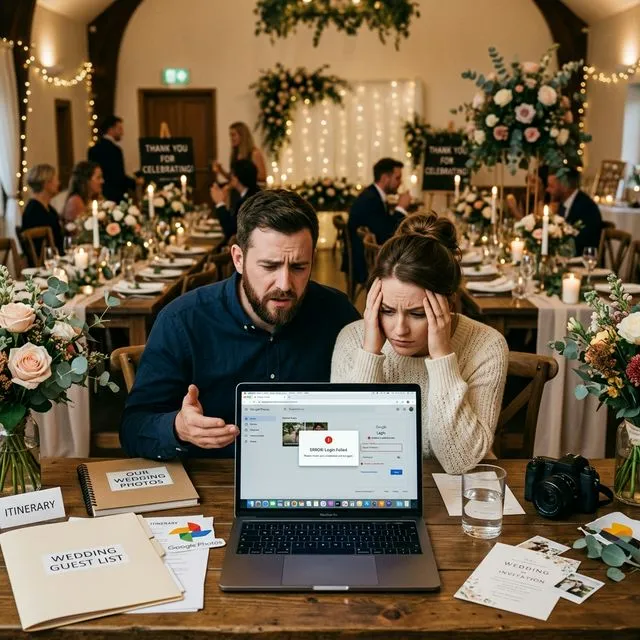
1. The Login Wall That Kills 70% of Guest Participation
This is the single biggest problem, and most couples don't discover it until the wedding day itself - when it's too late to fix.
When a guest scans your QR code linking to a Google Photos shared album, the link opens in their mobile browser (Safari on iPhone, Chrome on Android). In this browser context, the guest is almost never logged into their Google account. While they may be logged into the Gmail app or the YouTube app, mobile browsers maintain separate authentication sessions.
Instead of seeing a friendly "Upload Photos" button, your guest is confronted with the Google Sign-In screen. Now they need to:
- Remember their Gmail password (which they haven't typed in years thanks to FaceID and auto-fill)
- Navigate two-factor authentication (which triggers a prompt on a different device or app)
- Deal with "suspicious login" warnings because Google detects a new browser session at an unfamiliar location
The result? Real-world data from wedding planners consistently shows that 60-70% of guests abandon the upload process at the login screen. Your Uncle Dave, your college friend from out of town, your partner's elderly grandmother - they all hit the same wall and put their phone away.
The Math: If you have 150 guests and 120 of them take photos, a login wall that stops 70% means you receive photos from only ~36 people. That's 84 guests worth of candid memories - the dance floor selfies, the cocktail hour laughs, the ceremony tears - lost forever because of a password prompt.
2. The Storage Quota Trap That Blocks Your Guests' Uploads
Even if a guest successfully logs in, a second invisible barrier awaits. Google Photos has not been "free unlimited storage" since June 2021. Every photo and video uploaded to Google Photos now counts against the user's 15GB free quota - shared across Gmail, Google Drive, and Google Photos.
Here's the critical detail most couples miss: when a guest uploads a 4K video of your first dance to your shared album, that video counts against their storage quota, not just yours.
In 2026, the average smartphone user's Google storage is already 60-80% full from years of accumulated emails, Drive files, and automatic photo backups. When a guest tries to upload a 500MB video of your ceremony, they may receive this dreaded error:
⚠️ "You've run out of storage. Buy more space or free up storage to continue."
Your guest isn't going to buy a Google One subscription at your wedding reception. They're going to shrug, close the browser, and that irreplaceable video of your vows disappears into the void.
3. The Compression Problem - Your Full-Resolution Photos Are Gone
Google Photos offers two storage modes: "Original quality" (which counts fully against your quota) and "Storage saver" (which compresses files to save space). Most users have "Storage saver" enabled by default because Google aggressively promotes quota conservation.
When photos flow through Google Photos with "Storage saver" enabled:
- Photos are downsized to a maximum of 16 megapixels
- Videos are capped at 1080p resolution, even if shot in 4K
- HEIC/RAW files from modern iPhones are converted and compressed
This means the stunning 48MP photo from your cousin's iPhone 16 Pro gets silently downgraded. The 4K 60fps video of your first dance becomes a 1080p compressed file. You'll never notice until you try to make a large print or hand the footage to your videographer for a highlight reel - and realize the sharpness is gone.
4. The "Cluttered Album" Problem - Zero Organization
When multiple guests upload to a shared Google Photos album, every photo lands in a single, undifferentiated stream. There are no folders, no guest identification, no upload timestamps visible at a glance. You end up with 400 photos in a flat list where blurry test shots sit beside gorgeous golden-hour portraits.
Worse, Google Photos' auto-organization (facial recognition groups, auto-albums) does not work on shared albums the same way it works on your personal library. The AI features you love in your own Photos app - searching by face, by location, by object - are severely limited when applied to a collaborative album from anonymous contributors.
5. The Cross-Platform Nightmare - iPhone vs. Android vs. No Google Account
Your wedding guest list is a technology melting pot. You have iPhone users, Android users, older relatives with basic phones, and international guests who may use regional platforms entirely outside the Google ecosystem.
- iPhone users: Safari on iOS does not maintain Google authentication by default. These guests face the full login wall.
- Non-Gmail users: Guests with Yahoo, Outlook, or corporate email addresses may not have a Google account at all. For them, uploading to Google Photos is literally impossible without account creation.
- International guests: In some countries, Google services are restricted or less commonly used. These guests are completely excluded.
What About Google Drive Shared Folders? Same Problems, Different Interface
Many couples, upon learning about Google Photos' limitations, pivot to a different Google solution: "I'll just create a Google Drive shared folder and set it to 'Anyone with the link can edit.'"
Unfortunately, this suffers from the exact same authentication problem. Google's security architecture requires any person uploading files to Google Drive to be authenticated with a Google account - even on folders marked as "public." The mobile browser login wall is identical.
Additionally, the Google Drive mobile web interface is not designed for batch photo uploading. Selecting 50 photos from an iPhone camera roll through Drive's mobile web UI is agonizingly slow, prone to timeouts, and provides no progress feedback. It feels like using a spreadsheet app to manage a photo gallery.
Deep Dive: We wrote a comprehensive technical breakdown of this exact failure mode. Read the full analysis: Why Google Drive Shared Folders Fail at Weddings (And The Seamless Alternative)
The Solution: Keep Google Drive, Remove the Friction
Here's the important truth that most wedding planning articles miss: the problem isn't Google. The problem is making your guests interact with Google's authentication directly.
Google Drive is actually the perfect destination for your wedding photos. It's reliable, secure, affordable, and permanent. Your photos won't expire after 12 months like they do on GuestPix or Kululu. You won't receive a panicked "download your files before we delete them" email. Your memories live in your personal cloud, under your control, forever.
The solution is a "bridge" architecture - a tool that provides guests with a frictionless, zero-login upload experience on the front end, while securely routing every file directly into your Google Drive on the back end.
This is exactly what EventSnap was built to do.
How the Bridge Architecture Works
The EventSnap Flow vs. Raw Google Photos:
❌ Google Photos (DIY)
- Guest scans QR code
- Browser opens Google login
- Guest enters password
- 2FA verification triggered
- Navigate clunky mobile UI
- Select photos one by one
- Photos compressed by algorithm
- Result: 30 photos from 36 guests
✅ EventSnap (Bridge)
- Guest scans QR code
- Beautiful upload page opens
- No login required
- Tap "Upload," select photos
- Files transfer in full resolution
- Photos land in YOUR Drive
- Zero compression, zero fees
- Result: 500+ photos from 100+ guests
Why EventSnap Is the Professional Front-End for Google Drive
EventSnap doesn't replace Google Drive - it unlocks it. When you connect your Google account to EventSnap, you authenticate once. EventSnap creates a dedicated folder in your Drive and establishes a secure API connection.
From that point on, every guest who scans your QR code interacts only with EventSnap's optimized mobile upload page. They never see a Google login screen. They never need a Google account. They simply tap, select their photos, and press upload. The files flow through EventSnap's secure pipeline directly into your personal Google Drive folder - in full, uncompressed resolution.
- No guest login required. Zero friction. Works on every phone, every browser.
- Full resolution preserved. No compression. Your 48MP photos and 4K videos arrive exactly as they were shot.
- No guest storage quota issues. Uploads don't count against your guests' Google storage. The files route directly to your Drive via EventSnap's authenticated connection.
- Permanent storage. Unlike GuestPix or Kululu, which delete your photos after 3-12 months, your Google Drive photos stay forever. Even if EventSnap ceased to exist tomorrow, your memories are safe in your personal cloud.
- Organized uploads. Every file lands in a clean, dedicated folder with timestamps and upload metadata.
The Real Cost Comparison: "Free" vs. Actually Free
The appeal of Google Photos is that it's "free." But let's calculate the true cost of the DIY approach:
| Factor | Google Photos (DIY) | EventSnap ($9.99) |
|---|---|---|
| Monetary cost | $0 | $9.99 (one-time) |
| Expected photos collected | 30-50 | 300-500+ |
| Guest participation rate | ~30% | ~85% |
| Photo quality | Compressed | Full resolution |
| Video quality | Capped at 1080p | Full 4K preserved |
| Guest login required? | Yes (Google account) | No |
| Storage expiration | Never (your quota) | Never (your Drive) |
| Cost per photo | $0 but 350+ photos lost | ~$0.02 per photo |
The "free" option costs you hundreds of irreplaceable memories. At $9.99, EventSnap's cost-per-photo comes out to about 2 cents - less than a disposable camera, and the memories last forever in your own Google Drive.
Frequently Asked Questions About Google Photos for Weddings
Can I use Google Photos for my wedding?
While Google Photos can technically be used for weddings, it has critical limitations: guests must be logged into a Google account to contribute, uploads count against their personal storage quota, and the mobile browser experience is clunky. A better approach is using a dedicated QR-code-based tool like EventSnap that routes photos directly to your Google Drive without requiring guests to log in.
What is the best way to share wedding photos with Google Drive?
The best way to use Google Drive for wedding photos is through a "bridge" platform like EventSnap. Instead of sharing a raw Google Drive link (which requires guest login), EventSnap provides a frictionless QR code upload page that automatically routes full-resolution photos into your personal Google Drive folder. Guests never need to log in or have a Google account.
Why can't my guests upload to my Google Photos shared album?
Google requires anyone uploading to a shared album to be authenticated with a Google account. When guests scan a QR code at your wedding, the link opens in their mobile browser where they are typically not logged in. This creates a login wall that causes 60-70% of guests to abandon the upload entirely.
Is Google Photos free for unlimited wedding photo storage?
No. Since June 2021, Google Photos counts all uploads against your 15GB free quota (shared with Gmail and Drive). For a typical wedding generating 20-50GB+ of media, you'll need a paid Google One plan. More critically, when guests upload to your shared album, the files also count against their personal storage, which can block uploads entirely.
The Bottom Line: Love Google, Use a Bridge
Google's ecosystem is incredible for personal photo management. It's where your memories should ultimately live - safe, searchable, and permanent in your own Google Drive. The mistake couples make is forcing their guests to interact with Google's authentication layer directly.
The solution isn't abandoning Google. It's using a lightweight bridge that handles the guest-facing friction while leveraging Google Drive's infrastructure on the backend. EventSnap was designed from the ground up for this exact purpose: zero friction for guests, zero compromise for couples, and permanent ownership in your own cloud.
Your wedding day happens once. The professional photographer will capture the big moments, but the soul of the celebration - the candid laughs, the dance floor chaos, the teary-eyed toasts - lives on your guests' phones. Don't let a login screen stand between you and those memories.
Related Reading: Learn why permanent photo storage matters in our definitive guide: Why You Should Never Rent Your Memories: Permanent Photo Storage Guide (2026)
Keep Google Drive. Ditch the Login Wall.
Give your guests a seamless upload experience. Every photo lands in your Google Drive - in full resolution, forever. Free Starter plan available.
🎉 Create Your Free Wedding Event